Claude Code Hooks Examples: 7 Hooks I Ran, With Real Output
These Claude Code hooks examples are seven hooks I ran on Claude Code 2.1.330, each with its settings JSON, its script and the real output. A hook is a shell command that Claude Code runs by itself at a set moment, such as before a tool call.
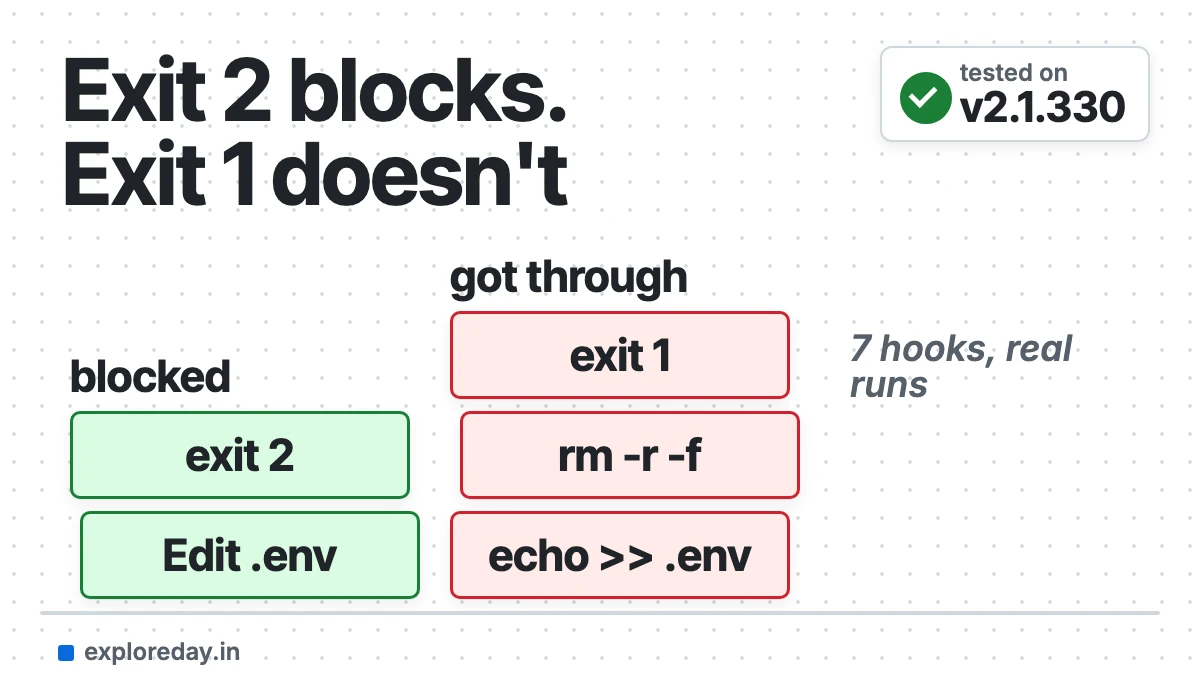
Most lists of hook configs never show a run. I ran every one, and two results surprised me. The well-known “protect .env” hook did not stop a Bash write. A blocker that exits with code 1 blocked nothing.
Quick answer: Put a hooks block in .claude/settings.json. Pick an event such as PreToolUse, a matcher such as Bash, and a command. To block an action, the command must exit with code 2, not 1.
Tested on: Claude Code 2.1.330, macOS 26.7.1 (Apple Silicon), 22 November 2026. Every command below was run for this guide and the outputs are copied from that run, except the one hook marked “not tested”. Drafted with AI assistance (Claude) and checked against the official docs linked in the text.
Set up your first hook in 5 steps
- Install jq, which reads the JSON that hooks get:
brew install jq(orapt install jq). - Make a folder for scripts:
mkdir -p .claude/hooks - Save a script there, for example
.claude/hooks/protect-files.shfrom example 1, and runchmod +x .claude/hooks/*.sh. - Register it in
.claude/settings.jsonunder"hooks", with an event and a matcher. Each example below has the full file. - Check it loaded: type
/hooksin Claude Code. Then trigger it once and read the result.
The Claude Code hooks examples at a glance
| # | Hook | Event | Run? | What the run showed |
|---|---|---|---|---|
| 1 | Block edits to protected files | PreToolUse |
Yes | Edit blocked. A Bash write got through. |
| 2 | Format files after edits | PostToolUse |
Yes | File reformatted on disk. |
| 3 | Send lint errors to Claude | PostToolUse |
Yes | Claude read the error. The file stayed. |
| 4 | Log every Bash command | PreToolUse |
Yes | 3 commands logged, 1 of them blocked. |
| 5 | Block dangerous commands | PreToolUse |
Yes | rm -rf blocked. rm -r -f was not. |
| 6 | Run tests before Claude stops | Stop |
Yes | Claude was sent back and fixed the bug. |
| 7 | Add context at session start | SessionStart |
Yes | Claude answered from the hook’s text. |
| 8 | Desktop notification | Stop, Notification |
Partly | Stop fired. Notification never fires in claude -p. |
How do Claude Code hooks work?
A hook has three parts: an event, a matcher and a handler. The event says when, the matcher says for which tool, and the handler is the command to run. The official hooks guide lists 33 events today.
Claude Code sends the hook a JSON object on stdin. For tool events it holds tool_name and tool_input. The hook answers with its exit code:
| Exit code | Meaning | Effect on PreToolUse |
|---|---|---|
0 |
Success | The tool call goes on. |
2 |
Blocking error | The call is blocked. Claude reads your stderr. |
Any other, such as 1 |
Non-blocking error | The call still runs. |
Hooks can live in three settings files, per the hooks reference:
~/.claude/settings.json: all your projects..claude/settings.json: one project, shared through git..claude/settings.local.json: one project, only you.
I used a throwaway folder and the project file for every test. Each run was claude -p with --setting-sources project,local, so my own user settings stayed out. I added --include-hook-events to see each hook’s exit code. The HOOK lines below come from that. Paths are cut to $TMP/demo, and long lines are trimmed.
1. Block edits to protected files (PreToolUse hook)
This PreToolUse hook stops the Edit and Write tools from touching .env, lock files and .git/. The script is the one from the official guide, minus one Windows line. Save it as .claude/hooks/protect-files.sh:
#!/bin/bash
# protect-files.sh: block Edit and Write on protected paths
INPUT=$(cat)
FILE_PATH=$(echo "$INPUT" | jq -r '.tool_input.file_path // empty')

PROTECTED_PATTERNS=(".env" "package-lock.json" ".git/")

for pattern in "${PROTECTED_PATTERNS[@]}"; do
  if [[ "$FILE_PATH" == *"$pattern"* ]]; then
    echo "Blocked: $FILE_PATH matches protected pattern '$pattern'" >&2
    exit 2
  fi
done

exit 0
Then register it in .claude/settings.json:
{
  "hooks": {
    "PreToolUse": [
      {
        "matcher": "Edit|Write",
        "hooks": [
          {
            "type": "command",
            "command": "\"$CLAUDE_PROJECT_DIR\"/.claude/hooks/protect-files.sh"
          }
        ]
      }
    ]
  }
}
I asked Claude to add a line to .env with the Edit tool:
CALL Edit {"file_path":"$TMP/demo/.env","old_string":"API_KEY=dummy-not-a-real-key","new_string":"API_KEY=dummy-not-a-real-key\nDEBUG=1"}
HOOK PreToolUse:Edit exit_code=2 outcome=error
     stderr: Blocked: $TMP/demo/.env matches protected pattern '.env'
RESULT is_error=true: PreToolUse:Edit hook error: ["$CLAUDE_PROJECT_DIR"/.claude/hooks/protect-files.sh]: Blocked: $TMP/demo/.env matches protected pattern '.env'

$ cat .env
API_KEY=dummy-not-a-real-key
The edit was blocked, and Claude got the reason. So far, so good.
What this hook did not block: Bash
The matcher is Edit|Write, so the hook never sees Bash. I asked for the same change as a shell command:
CALL Bash {"command":"echo DEBUG=1 >> .env"}
RESULT is_error=false: (Bash completed with no output)

$ cat .env
API_KEY=dummy-not-a-real-key
DEBUG=1
No hook fired, and the “protected” file changed. The official guide warns about this in a note, and suggests an Edit deny rule on top. I added one and tried two shell writes:
"permissions": { "deny": ["Edit(/.env)"] }

CALL Bash {"command":"echo DEBUG=1 >> .env"}
RESULT is_error=true: Permission to use Bash with command echo DEBUG=1 >> .env has been denied.

CALL Bash {"command":"python3 -c \"open('.env','a').write('DEBUG=1\\n')\""}
RESULT is_error=false: (Bash completed with no output)

$ cat .env
API_KEY=dummy-not-a-real-key
DEBUG=1| Write method | Hook only | Hook + deny rule |
|---|---|---|
| Edit tool | Blocked | Blocked |
echo ... >> .env |
Went through | Blocked |
python3 -c "open(...)" |
Not tested | Went through |
Treat this hook as a guard rail against honest mistakes. For a hard limit on which files commands can write, use the sandbox. My sandbox auto-allow test shows it stopping a write at the operating system level.
2. Format files after every edit (PostToolUse hook)
A PostToolUse hook runs after a tool call succeeds, which makes it the right place for a formatter. This script formats Go and JSON files. Save it as .claude/hooks/format.sh:
#!/bin/bash
# format.sh: format the file Claude just edited
FILE=$(jq -r '.tool_input.file_path // empty')
case "$FILE" in
  *.go)   gofmt -w "$FILE" ;;
  *.json) tmp=$(mktemp) && jq . "$FILE" > "$tmp" && mv "$tmp" "$FILE" ;;
esac
exit 0
The settings file below also registers the lint script from example 3:
{
  "hooks": {
    "PostToolUse": [
      {
        "matcher": "Edit|Write",
        "hooks": [
          {
            "type": "command",
            "command": "\"$CLAUDE_PROJECT_DIR\"/.claude/hooks/format.sh"
          },
          {
            "type": "command",
            "command": "\"$CLAUDE_PROJECT_DIR\"/.claude/hooks/lint.sh"
          }
        ]
      }
    ]
  }
}
I told Claude to write a cramped Go file on purpose:
CALL Write {"file_path":"$TMP/demo/main.go","content":"package main\nimport \"fmt\"\nfunc main(){fmt.Println( \"hi\" )}\n\n"}
HOOK PostToolUse:Write exit_code=0 outcome=success
HOOK PostToolUse:Write exit_code=0 outcome=success
RESULT is_error=false: File created successfully at: $TMP/demo/main.go

$ cat main.go
package main

import "fmt"

func main() { fmt.Println("hi") }
Both hooks ran, and the file on disk is formatted. Claude’s reply also said a hook had changed the file after its write.
For JavaScript, the official guide uses this one-line command instead. Prettier isn’t installed on my machine, so I did not run it:
"command": "f=$(jq -r '.tool_input.file_path') && npx prettier --write --ignore-unknown \"$f\""3. Send lint errors back to Claude
A PostToolUse hook that exits 2 can’t undo the edit, but Claude does read its stderr. That turns any linter into instant feedback. This one checks that Python files parse. Save it as .claude/hooks/lint.sh:
#!/bin/bash
# lint.sh: tell Claude when the Python file it just wrote does not parse
FILE=$(jq -r '.tool_input.file_path // empty')
[[ "$FILE" == *.py ]] || exit 0
if ! ERR=$(python3 -c 'import ast,sys; ast.parse(open(sys.argv[1]).read(), sys.argv[1])' "$FILE" 2>&1); then
  echo "Syntax check failed for $FILE:" >&2
  echo "$ERR" | tail -n 4 >&2
  exit 2
fi
exit 0
I asked Claude to write a file with a missing bracket:
CALL Write {"file_path":"$TMP/demo/broken.py","content":"def greet(name:\n    return name\n"}
HOOK PostToolUse:Write exit_code=0 outcome=success
HOOK PostToolUse:Write exit_code=2 outcome=error
     stderr: Syntax check failed for $TMP/demo/broken.py:
    def greet(name:
             ^
SyntaxError: '(' was never closed
RESULT is_error=false: File created successfully at: $TMP/demo/broken.py
TEXT The file was written with both lines exactly as you specified, and the post-write lint hook rejected it: ...
Note the last two lines. The write itself succeeded, and broken.py stayed on disk. Claude saw the error and offered to fix it. Swap the python3 line for eslint, ruff or tsc to suit your project.
4. Log every Bash command
This logging hook appends each Bash command to a file before it runs. It needs no script, only one jq line. I paired it with the blocker from example 5 in the same matcher group:
{
  "hooks": {
    "PreToolUse": [
      {
        "matcher": "Bash",
        "hooks": [
          {
            "type": "command",
            "command": "jq -r '\"\\(now | todate) \\(.tool_input.command)\"' >> \"$CLAUDE_PROJECT_DIR\"/.claude/bash.log"
          },
          {
            "type": "command",
            "command": "\"$CLAUDE_PROJECT_DIR\"/.claude/hooks/block-dangerous.sh"
          }
        ]
      }
    ]
  }
}
After a run with three commands, the log held all three. Times are UTC:
$ cat .claude/bash.log
2026-11-21T19:27:04Z ls build
2026-11-21T19:27:06Z rm -rf build
2026-11-21T19:27:07Z rm -r -f build
The second command was blocked by the other hook, yet it’s in the log. Hooks on the same event run side by side, so one hook’s block doesn’t stop the others. Add .claude/bash.log to .gitignore.
5. Block a dangerous command pattern
This PreToolUse hook on Bash checks each command against a short deny list and exits 2 on a match. Save it as .claude/hooks/block-dangerous.sh. The settings file is the one in example 4.
#!/bin/bash
# block-dangerous.sh: stop Bash commands that match a deny list
CMD=$(jq -r '.tool_input.command // empty')

PATTERNS=(
  'rm[[:space:]]+-[a-zA-Z]*r[a-zA-Z]*f'
  'rm[[:space:]]+-[a-zA-Z]*f[a-zA-Z]*r'
  'git[[:space:]]+push.*(--force|[[:space:]]-f)'
  'git[[:space:]]+reset[[:space:]]+--hard'
)

for p in "${PATTERNS[@]}"; do
  if echo "$CMD" | grep -Eq -- "$p"; then
    echo "Blocked by block-dangerous.sh: '$CMD' matches a dangerous pattern. Ask the user to run it." >&2
    exit 2
  fi
done
exit 0
I made a build folder and asked Claude to run three commands in a row:
CALL Bash {"command":"ls build"}
HOOK PreToolUse:Bash exit_code=0 outcome=success
HOOK PreToolUse:Bash exit_code=0 outcome=success
RESULT is_error=false: out.txt

CALL Bash {"command":"rm -rf build"}
HOOK PreToolUse:Bash exit_code=0 outcome=success
HOOK PreToolUse:Bash exit_code=2 outcome=error
     stderr: Blocked by block-dangerous.sh: 'rm -rf build' matches a dangerous pattern. Ask the user to run it.
RESULT is_error=true: PreToolUse:Bash hook error: ["$CLAUDE_PROJECT_DIR"/.claude/hooks/block-dangerous.sh]: Blocked by block-dangerous.sh: ...

CALL Bash {"command":"rm -r -f build"}
HOOK PreToolUse:Bash exit_code=0 outcome=success
HOOK PreToolUse:Bash exit_code=0 outcome=success
RESULT is_error=false: (Bash completed with no output)

$ ls build
ls: build: No such file or directory
rm -rf build was blocked. Then rm -r -f build slipped past my pattern and deleted the folder. A deny list only catches the spellings you thought of.
The reference says the same about its own if filter: use the permission system, not a hook, for a hard allow or deny. I use this hook to catch slips, not attacks.
The same block with JSON
You can also exit 0 and print a JSON decision. That gives Claude a cleaner reason:
#!/bin/bash
# deny-json.sh: block with JSON instead of exit 2
CMD=$(jq -r '.tool_input.command // empty')
if [[ "$CMD" == *"git push"* ]]; then
  jq -n '{hookSpecificOutput: {hookEventName: "PreToolUse", permissionDecision: "deny", permissionDecisionReason: "git push is blocked in this project. Ask the user to push."}}'
fi
exit 0
CALL Bash {"command":"git push --dry-run"}
HOOK PreToolUse:Bash exit_code=0 outcome=success
RESULT is_error=true: PreToolUse:Bash hook error: git push is blocked in this project. Ask the user to push.6. Stop hook example: run the tests before Claude finishes
A Stop hook runs each time Claude finishes a reply. If it exits 2, Claude keeps working and reads your stderr as the reason. This one runs the tests. Save it as .claude/hooks/verify-tests.sh:
#!/bin/bash
# verify-tests.sh: do not let Claude finish while the tests fail
INPUT=$(cat)
if [ "$(echo "$INPUT" | jq -r '.stop_hook_active')" = "true" ]; then
  exit 0  # already sent Claude back once; let it stop
fi
if ! OUT=$("$CLAUDE_PROJECT_DIR"/run-tests.sh 2>&1); then
  echo "Tests are failing. Fix them before you finish:" >&2
  echo "$OUT" | tail -n 3 >&2
  exit 2
fi
exit 0
{
"hooks": {
"Stop": [
{
"hooks": [
{
"type": "command",
"command": "\"$CLAUDE_PROJECT_DIR\"/.claude/hooks/verify-tests.sh",
"timeout": 60
}
]
}
]
}
}My test project had a bug: add(a, b) returned a - b. I asked Claude only to add a docstring, and not to run anything:
CALL Edit {"file_path":"$TMP/demo/calc.py", ... adds a docstring, leaves "return a - b" ...}
HOOK Stop exit_code=2 outcome=error
     stderr: Tests are failing. Fix them before you finish:
AssertionError: add(2, 3) returned -1, expected 5
USERMSG Stop hook feedback:
["$CLAUDE_PROJECT_DIR"/.claude/hooks/verify-tests.sh]: Tests are failing. Fix them before you finish: ...
TEXT The test expects `add(2, 3)` to return 5, and the body computes `2 - 3`. I'll change the body to addition and update the docstring to match.
CALL Edit {"file_path":"$TMP/demo/calc.py", ... "return a + b" ...}
HOOK Stop exit_code=0 outcome=success
FINAL subtype=success turns=5

$ ./run-tests.sh; echo "exit=$?"
exit=0
The first stop was blocked. Claude fixed the bug, and the second stop passed. Keep the stop_hook_active check. Without it, a test that can’t pass can send Claude round in circles. Claude Code only overrides the hook after eight blocks in a row with no tool call in between.
7. Add context at session start (SessionStart hook)
A SessionStart hook prints text, and Claude Code adds that text to Claude’s context. Use it for facts that change, like the current branch or a release freeze.
{
  "hooks": {
    "SessionStart": [
      {
        "matcher": "startup",
        "hooks": [
          {
            "type": "command",
            "command": "echo \"Release freeze is on until Friday. Deploy codeword: heron-42.\""
          }
        ]
      }
    ]
  }
}
$ claude -p "What is the deploy codeword? Answer in one short sentence. Do not use any tools."
HOOK SessionStart:startup exit_code=0 outcome=success
stdout: Release freeze is on until Friday. Deploy codeword: heron-42.
TEXT The deploy codeword is **heron-42**, though a session-start hook reported it and I haven't verified it against any other source.Claude used the text, and said where it came from. For facts that never change, a file is simpler. See my notes on what belongs in CLAUDE.md.
8. Notification hook: get a ping on macOS (partly tested)
A notification hook shows a desktop alert when Claude finishes or needs you. On macOS, osascript does it with no install:
{
  "hooks": {
    "Stop": [
      {
        "hooks": [
          {
            "type": "command",
            "command": "osascript -e 'display notification \"Claude has finished\" with title \"Claude Code\" sound name \"Glass\"'"
          }
        ]
      }
    ],
    "Notification": [
      {
        "matcher": "",
        "hooks": [
          {
            "type": "command",
            "command": "osascript -e 'display notification \"Claude Code needs your attention\" with title \"Claude Code\"'"
          }
        ]
      }
    ]
  }
}
The Stop half ran in my test, and osascript exited 0. I did not capture the banner in a screenshot. The Notification half never fired:
CALL Bash {"command":"touch needs-permission.txt"}
HOOK PermissionRequest:Bash exit_code=0 outcome=success
RESULT is_error=true: touch in '$TMP/demo/needs-permission.txt' needs approval. ...
HOOK Stop exit_code=0 outcome=success

$ cat .claude/events.log
PermissionRequest Bash: touch needs-permission.txt
Stop: notification sent, osascript exit 0
That fits the docs. A permission_prompt notification waits about six seconds at an open prompt, and idle_prompt waits about 60 seconds. A claude -p run has no prompt to wait at. So the Notification block above is checked against the docs, not tested.
For scripts and CI, use Stop or PermissionRequest. Both fired in print mode. The guide also lists notify-send for Linux and PowerShell for Windows, which I can’t test on a Mac.
Why are my Claude Code hooks not working?
In my tests, hooks that didn’t work failed for one of five reasons. Three of them fail silently, which is why they’re easy to copy from a guide.
Exit code 1 does not block
I changed exit 2 to exit 1 in the blocker from example 5. The hook printed its “Blocked” line, and the folder was deleted anyway:
CALL Bash {"command":"rm -rf build"}
HOOK PreToolUse:Bash exit_code=1 outcome=error
     stderr: Blocked by block-dangerous.sh: 'rm -rf build' matches a dangerous pattern. Ask the user to run it.
RESULT is_error=false: (Bash completed with no output)

$ ls build
ls: build: No such file or directory
The reference is blunt about it: exit code 1 is a non-blocking error. This bites scripts that use set -e, or Python scripts that crash. If a hook enforces a rule, make every failure path exit 2.
JSON fields at the wrong level are ignored
I printed permissionDecision at the top level of the JSON instead of inside hookSpecificOutput. The hook exited 0, nothing was blocked, and the transcript showed no error. Only the debug log gave it away:
$ claude -p "..." --debug-file debug.log
$ grep "Hook JSON" debug.log
[DEBUG] Hook JSON output had unrecognized keys (ignored): permissionDecision, permissionDecisionReason.
The other three
- The matcher is too narrow.
Edit|Writenever sees Bash (example 1). Matchers are also case-sensitive, per the guide. - The pattern misses a spelling.
rm -r -fwalked past myrm -rfcheck (example 5). - The event doesn’t fire in your mode.
Notificationstayed silent inclaude -p(example 8).
To debug, pipe sample JSON into the script by hand and check $?. Then run claude --debug-file debug.log and search the log. If Claude reports a failed edit instead, that is a different problem. See my guide to “Error editing file” in Claude Code.
One safety note for scripts
All my hooks ran in a folder I had never trusted. That’s by design: the reference says a -p session treats the folder as trusted. Before you run claude -p in a repo you didn’t write, read its .claude/settings.json. Or turn hooks off for that run:
claude -p "..." --settings '{"disableAllHooks": true}'I took that flag from the reference and did not run it.
FAQ
What is the difference between Claude Code hooks and skills?
A hook is a command that Claude Code always runs at a set event. A skill is a set of instructions that Claude chooses to follow. Use a hook when something must happen every time. My guide to Claude Code skills covers the other half.
Where do I put Claude Code hooks?
In the hooks block of a settings file. Use .claude/settings.json to share them with a team, .claude/settings.local.json to keep them to yourself, or ~/.claude/settings.json for every project.
Can a hook block a command in bypass mode?
Yes, according to the guide. A PreToolUse hook that denies a call blocks it in every permission mode, including --dangerously-skip-permissions. I did not test that mode.
Do I need jq for hooks?
No, but something has to read the JSON on stdin. Every script here uses jq. Python or Node works as well.
How do I turn all hooks off?
Set "disableAllHooks": true in a settings file. There’s no switch for a single hook, so remove its entry instead. Hooks set by your organization can’t be turned off this way.